

There are three ways into a Mizdah meeting, and they suit different situations.
Share the link
Every meeting has a link, and anyone with it can open the meeting — no Mizdah account required. This is the right option for external guests, and it is why the waiting room exists: a link can be forwarded.
Copy it from the meeting details, or from inside the meeting itself.
Invite by email
When scheduling, add attendees by email. They get an invitation, and the meeting appears in their Mizdah calendar. If you have connected Google Calendar, it lands there too.
Use this for anything in the future — the invitation carries the time, which a bare link does not.
Add someone mid-meeting
From inside a live meeting, Add person rings another Mizdah user directly. They get an incoming call rather than an email, which is what you want when you have realised halfway through that you need someone.
They join without passing through the waiting room, because you invited them from inside.
Controlling who gets in
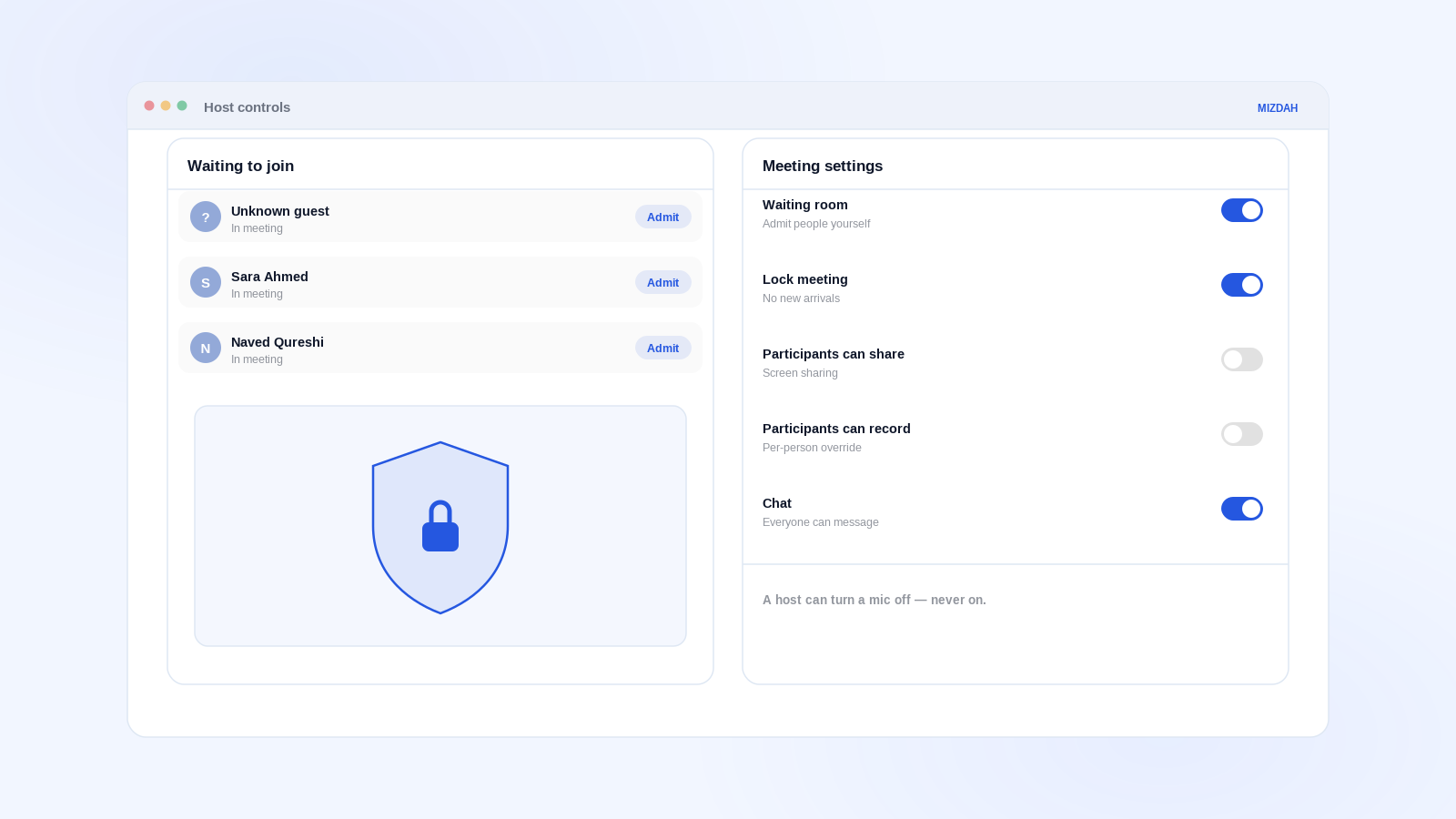
The waiting room holds arrivals until you admit them. Locking the meeting stops new arrivals altogether — useful once a sensitive conversation has started.
Hosts can also restrict who may invite others, so a participant cannot widen the room without asking.
Insights and guides from the team building Mizdah.
Ready to communicate better?
Start using Mizdah today — no download, no sign-up to join.
Get Started