
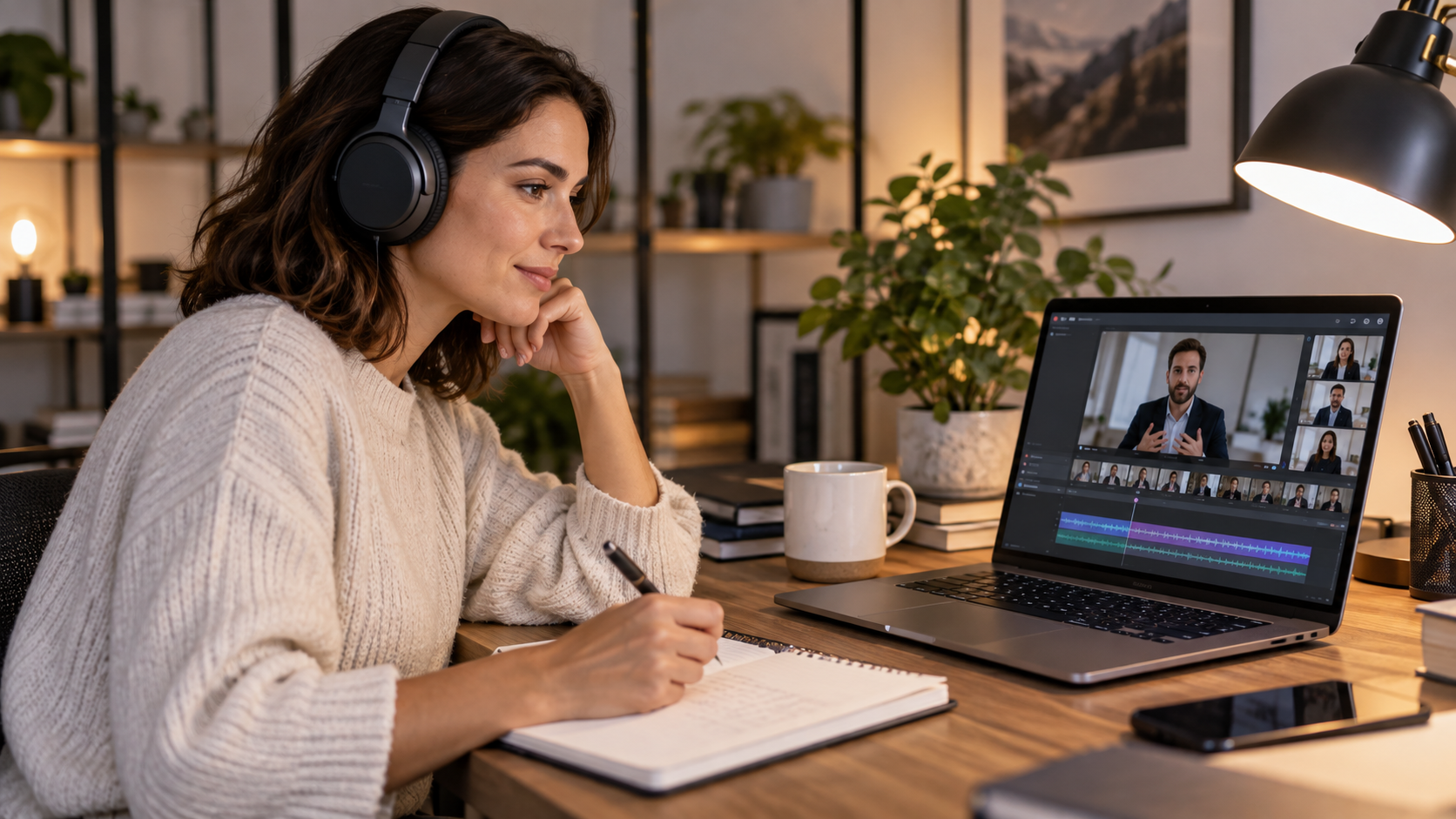
Recording in Mizdah is visible, controlled by the host, and saved to your account when the meeting ends.
Starting
Open the meeting toolbar and choose Record. Everyone in the meeting sees a recording indicator for as long as it runs — there is no silent recording, deliberately.
Who can record
By default the host can. Hosts can also grant recording to individual participants, or allow it meeting-wide from host controls.
If the option is greyed out for you, the host has not granted it. That is a permission, not a fault.
Say something first
Before you start, say that you are recording and what the recording is for. This is partly courtesy and partly practical: people speak differently when they discover afterwards that a conversation was kept.
If anyone objects, that is worth more than the recording.
Finding it afterwards
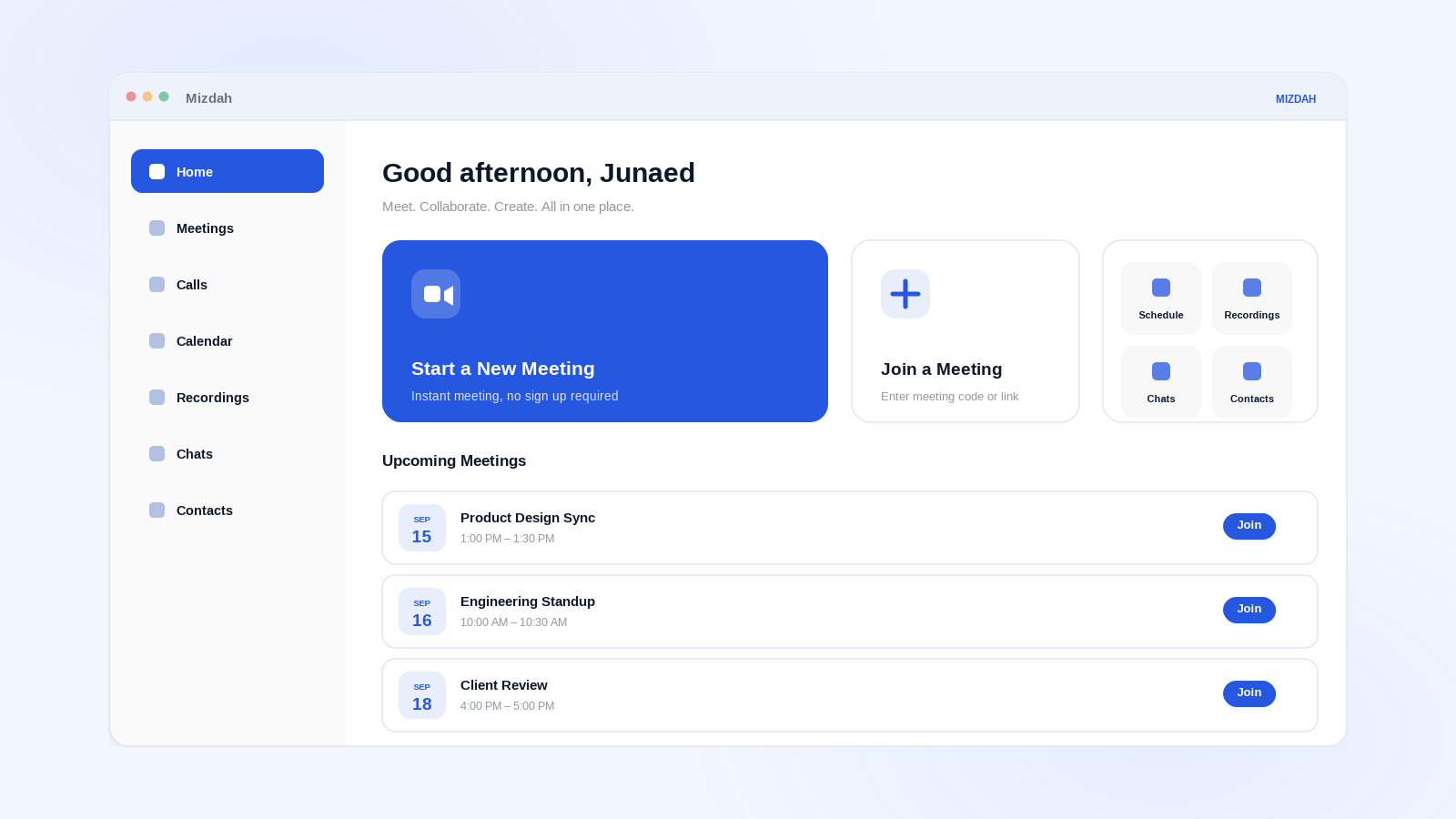
Recordings appear under Recordings and in your profile once processing finishes. From there you can play them in Mizdah's own player, download the file, or delete it.
Leaving the meeting does not interrupt an upload in progress — the leave screen keeps it going, so closing the tab immediately is the one thing to avoid.
If the meeting ends unexpectedly
A meeting ending while recording tells the recorder to stop and flush what it has, so an interrupted meeting still produces a usable file rather than nothing.
Insights and guides from the team building Mizdah.
Ready to communicate better?
Start using Mizdah today — no download, no sign-up to join.
Get Started