

Screen sharing in Mizdah works from the meeting toolbar, and what you pick matters more than most people expect.
Start sharing
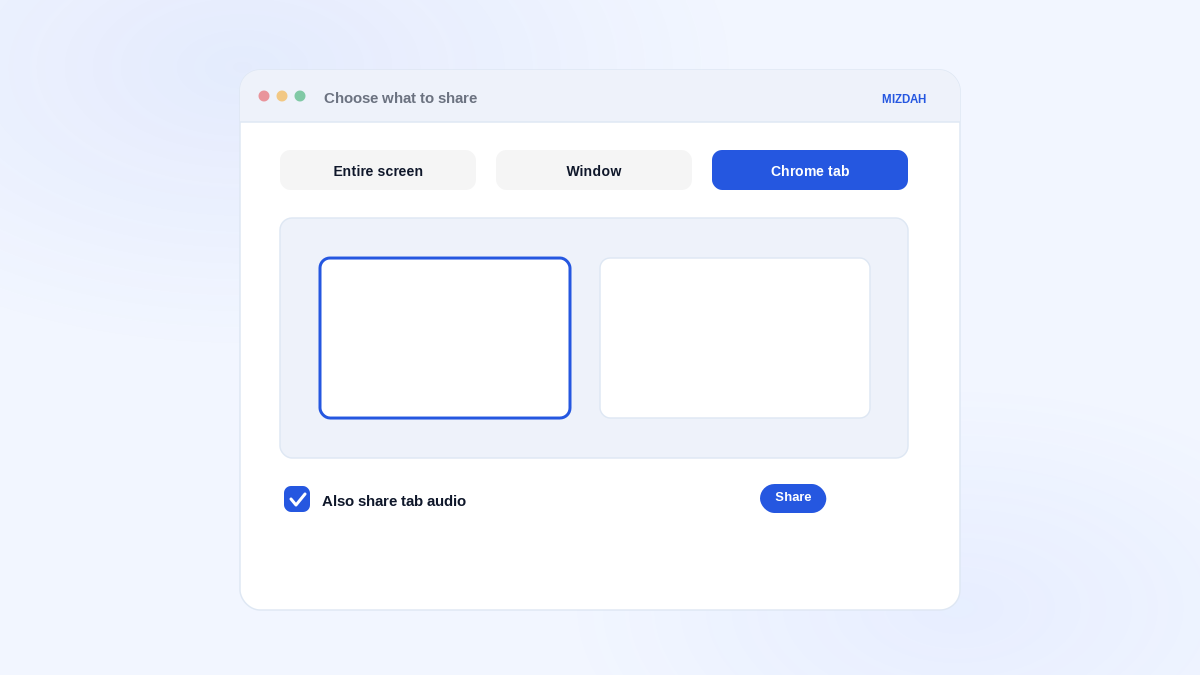
In a meeting, open the toolbar and choose Share screen. Your browser then asks what to share:
- A tab — the cleanest option, and the only one that reliably carries that tab's audio. Use it for anything with sound: a video, a demo, a recorded walkthrough.
- A window — shares one application. Good for a slide deck when you want your notes to stay private.
- Your entire screen — shares everything, including notifications. Use it when you need to move between applications.
Bring the audio
If you are sharing something with sound, tick Share tab audio in the browser prompt. It is easy to miss, and it is the difference between a demo everyone can hear and a silent video.
Sharing your whole screen offers system audio on some platforms and not others. If the sound matters, share the tab instead.
While you are sharing
Everyone sees a presenting indicator, and you get a floating bar to stop. Your camera keeps running, so people can still see you — worth keeping on, because a disembodied slide deck is much harder to follow.
Tips
Insights and guides from the team building Mizdah.
Ready to communicate better?
Start using Mizdah today — no download, no sign-up to join.
Get Started