
The whiteboard is shared, live, and the same for everyone in the meeting — including people on their phones.
Starting a board
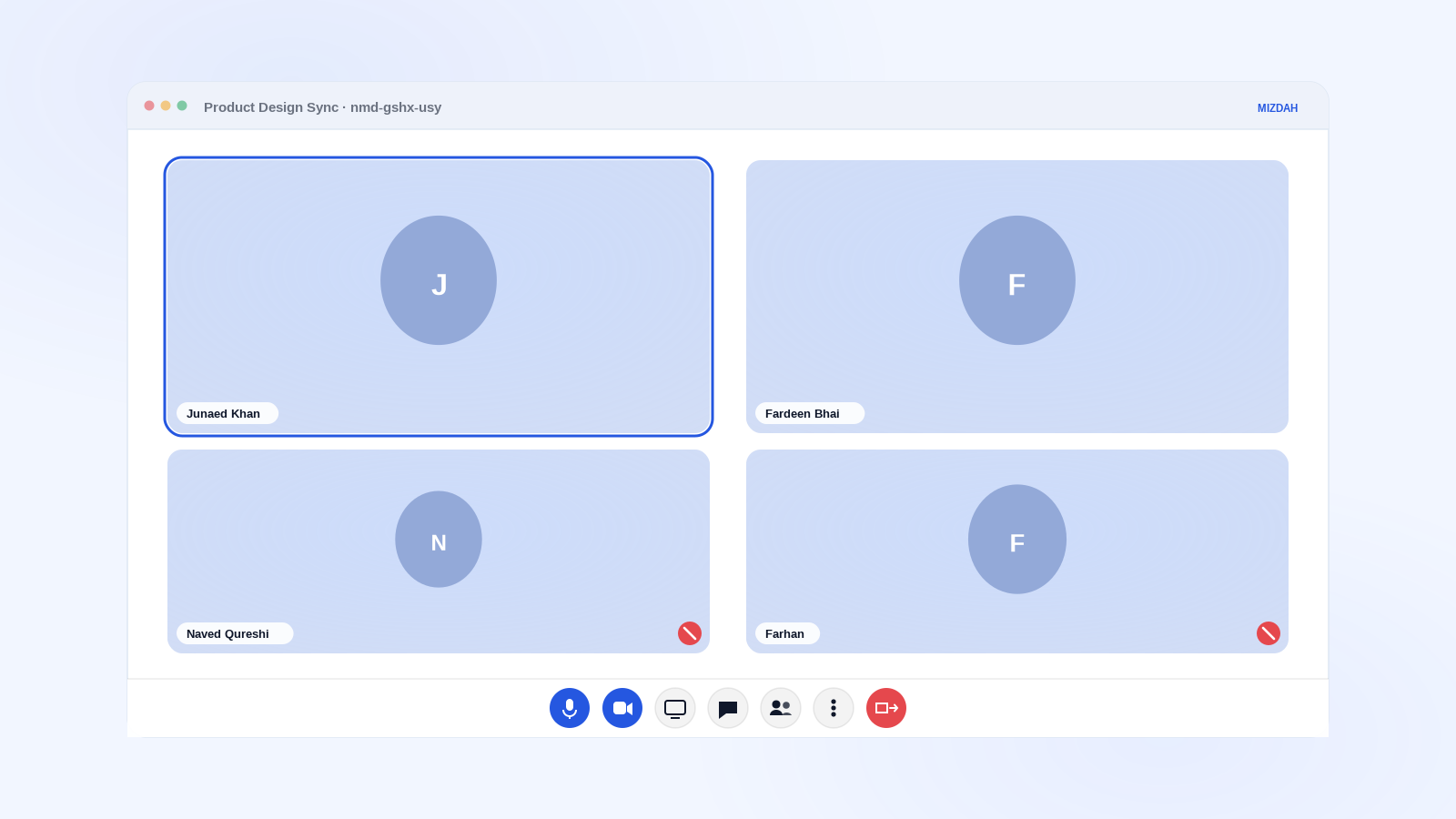
Open the meeting toolbar and choose Whiteboard. Everyone in the meeting sees it appear. As host you control whether other people may draw on it or only watch.
Drawing together
Every stroke is broadcast as it happens, so there is no "my copy" and "their copy". Undo and redo are shared for the same reason: they act on the one board everyone is looking at, not on your private history of it.
That surprises people the first time. It is deliberate — a private undo on a shared board produces two different boards and an argument about which is right.
Starting a new board
New whiteboard clears the surface and begins a fresh session with its own history. Undo will not reach back into the previous board, which is the behaviour you want when the topic has changed.
Ending it
Closing the whiteboard returns everyone to the meeting. As host you can also turn sharing off entirely, which removes it for every participant on every platform at once.
Making it useful
A whiteboard is at its best when the thing being discussed has a shape — an architecture, a flow, a sequence of events. It is at its worst as a place to write lists, which are easier to read in a document.
Insights and guides from the team building Mizdah.
Ready to communicate better?
Start using Mizdah today — no download, no sign-up to join.
Get Started